
Disable Automatic App Updates on Android Phone: Smartphones have become an essential part of daily life, and Android devices dominate the global mobile market because of their flexibility, affordability, and vast application ecosystem. Millions of Android users install apps from the Google Play Store for communication, entertainment, banking, productivity, and more.
However, many users eventually notice that their apps update automatically without permission, often consuming mobile data, changing familiar features, or slowing down their device.
For some users, automatic updates are helpful because they bring security patches and new features without manual effort. But for others, they can create several problems. Automatic updates can consume large amounts of mobile data, especially for people who rely on limited data plans. They can also introduce unwanted changes to apps, remove features users liked, or even cause compatibility issues with certain devices.
This is why many Android users look for ways to Disable Automatic App Updates on their phones. Turning off automatic updates allows you to decide when and which apps to update. It gives you more control over your device, saves mobile data, prevents unexpected changes, and helps maintain stability if you prefer a specific version of an app.
In this comprehensive guide, you will learn how to Disable Automatic App Updates on your Android phone using several simple methods. We will walk through step-by-step instructions, explain the benefits of turning off auto updates, and show you how to manage app updates manually whenever you want. Whether you use Samsung, Xiaomi, Tecno, Infinix, Oppo, or any other Android device, the steps are easy to follow.
ALSO READ: Schengen Visa Bank Balance Requirement: How Much You Need
Why You May Want to Disable Automatic App Updates
Before learning how to Disable Automatic App Updates, it is important to understand why many Android users prefer turning this feature off.
1. Save Mobile Data
One of the biggest reasons users choose to Disable Automatic App Updates is to reduce mobile data consumption. Many apps today are large in size, and updates can easily exceed hundreds of megabytes.
If your phone automatically updates multiple apps in the background, your data bundle may finish quickly without you realizing it.
For users who depend on limited mobile data plans, turning off automatic updates helps ensure that updates only happen when connected to Wi-Fi.
2. Prevent Unexpected App Changes
Developers regularly update apps to improve functionality or change the user interface. While updates can be beneficial, they sometimes remove features or redesign the app in ways users dislike.
By choosing to Disable Automatic App Updates, you can keep the version of the app that works best for you until you decide to update it manually.
3. Avoid Device Performance Issues
Some app updates may not be fully optimized for older Android devices. After updating, users may experience:
- Slower performance
- Increased battery drain
- App crashes
- Storage issues
When you Disable Automatic App Updates, you can check reviews or feedback before installing new versions.
4. Maintain App Stability
Sometimes an update introduces bugs. This happens more often with newly released updates.
If you Disable Automatic App Updates, you can wait until developers release bug fixes before updating the app.
5. Control Storage Space
Apps are becoming larger with every update. Automatic updates can fill your storage quickly.
Turning off automatic updates ensures that only necessary apps are updated, helping you manage phone storage more efficiently.
How to Disable Automatic App Updates on Android Phone
There are several ways to Disable Automatic App Updates depending on your Android device and settings. Below are the most effective methods.
The easiest way to Disable Automatic App Updates on Android is through the Google Play Store settings.
Step-by-Step Guide
Follow these steps carefully:
Step 1: Open the Google Play Store
Locate the Play Store app on your Android phone and tap to open it.
Step 2: Tap Your Profile Icon
At the top-right corner of the screen, tap your profile picture or account icon.
Step 3: Open Settings
From the menu options, tap Settings.
Step 4: Select Network Preferences
Inside the settings menu, tap Network Preferences.
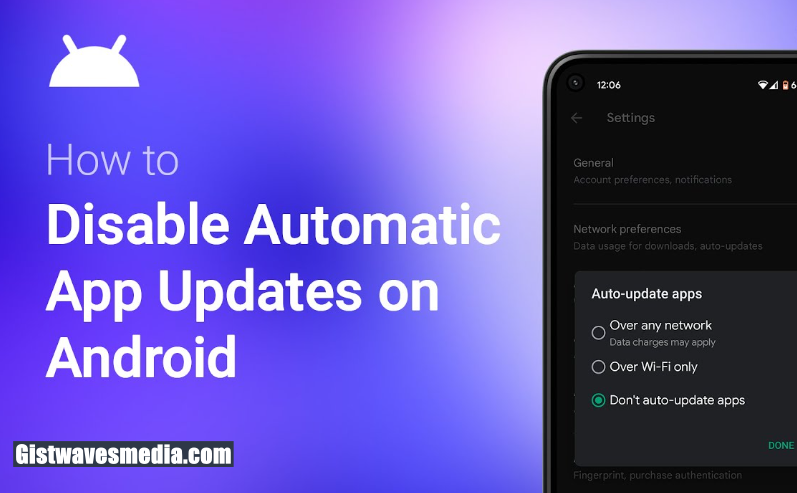
Step 5: Tap Auto-update Apps
You will see the option labeled Auto-update apps.
Step 6: Choose “Don’t Auto-update Apps”
Select Don’t auto-update apps, then tap Done.
Once this setting is enabled, your phone will no longer update apps automatically. This method is the most common way to Disable Automatic App Updates on Android devices.
Disable Automatic App Updates for Individual Apps
Sometimes you may want automatic updates for most apps but prevent updates for specific ones.
For example, you might want to keep an older version of a particular app.
Step 1: Open Google Play Store
Launch the Play Store application.
Step 2: Search for the App
Use the search bar to find the specific app.
Step 3: Open the App Page
Tap the app name to open its information page.
Step 4: Tap the Three-Dot Menu
At the top-right corner, tap the three dots.
Step 5: Disable Enable Auto Update
Uncheck Enable auto update.
This method allows you to Disable Automatic App Updates for selected apps while leaving others unchanged.
Disable Automatic App Updates Using Data Saver Mode
Another way to help control updates is by enabling Android’s data saver feature.
Data saver restricts background data usage, which can prevent automatic downloads and updates.
Steps to Enable Data Saver
- Open Settings on your phone
- Tap Network & Internet
- Select Data Usage
- Tap Data Saver
- Turn on Data Saver
While this method does not completely Disable Automatic App Updates, it significantly reduces background activity, including updates.
Disable Automatic App Updates on Wi-Fi
Some Android devices allow apps to update automatically only when connected to Wi-Fi.
If you want stricter control, you can change this setting.
Steps
- Open Google Play Store
- Tap your profile icon
- Go to Settings
- Tap Network Preferences
- Select Auto-update apps
- Choose Don’t auto-update apps
This ensures that updates never happen automatically, even on Wi-Fi.
READ ALSO: Football & Cricket Streaming Apps: Watch Live Matches Online
How to Manually Update Apps After You Disable Automatic App Updates
Once you Disable Automatic App Updates, you will need to update apps manually when necessary.
Steps to Manually Update Apps
Step 1: Open Google Play Store
Launch the Play Store app.
Step 2: Tap Profile Icon
Tap your account icon in the top-right corner.
Step 3: Select Manage Apps and Device
Tap Manage apps & device.
Step 4: Check Available Updates
Under the Updates available section, you will see apps with new versions.
Step 5: Update Selected Apps
You can update apps individually or tap Update all.
Manual updates allow you to review update sizes and decide whether to install them.
Benefits When You Disable Automatic Android App Updates
Understanding the advantages of turning off auto updates can help you decide if this option is right for you.
Better Data Management
When you Disable Automatic App Updates, you prevent background downloads that consume data unexpectedly.
More Control Over App Versions
You decide which version of an app to keep.
Improved Device Performance
Older phones may perform better without frequent app updates.
Reduced Background Activity
Fewer automatic processes mean better battery life and smoother phone performance.
Possible Drawbacks When You Disable Automatic Android App Updates
While disabling auto updates offers benefits, there are also potential disadvantages.
Security Risks
Updates often include security patches that protect your phone from vulnerabilities.
If you Disable Automatic App Updates, you must remember to update important apps regularly.
Missing New Features
Developers frequently introduce new features through updates.
Without automatic updates, you might miss improvements unless you update manually.
Compatibility Issues
Some apps require updates to function properly with new Android versions.
Tips for Managing Apps After You Disabling Automatic App Updates
Here are useful practices to follow after you Disable Automatic App Updates.
Check Updates Weekly
Open the Play Store once a week to see if any important apps need updating.
Prioritize Security Apps
Always update:
- Banking apps
- Payment apps
- Password managers
- Security apps
These updates are essential for protecting personal information.
Update Apps Using Wi-Fi
To save data, update apps only when connected to Wi-Fi.
Monitor App Reviews
Before updating, check reviews in the Play Store to see if users report problems.
Disable Automatic App Updates on Different Android Brands
Although Android devices share similar systems, some brands slightly modify the interface.
Below are general guidelines for popular Android brands.
Samsung Phones
On Samsung devices:
- Open Google Play Store
- Tap profile icon
- Go to Settings
- Select Network Preferences
- Tap Auto-update apps
- Choose Don’t auto-update apps
Xiaomi Phones
For Xiaomi phones running MIUI:
- Open Play Store
- Tap profile icon
- Go to Settings
- Tap Network Preferences
- Disable auto updates
Tecno and Infinix Phones
These phones follow the same Play Store settings method.
Simply access Play Store settings and turn off auto updates.
How to Re-Enable Automatic App Updates
If you decide to restore automatic updates later, you can easily turn the feature back on.
Steps
- Open Google Play Store
- Tap profile icon
- Go to Settings
- Tap Network Preferences
- Select Auto-update apps
- Choose either:
- Over Wi-Fi only
- Over any network
This will restore automatic updates on your Android device.
ALSO READ: SHAREit Free Download for Android, iOS, Windows PC
Troubleshooting: Automatic Updates Still Happening
Sometimes users Disable Automatic App Updates, but apps still update. This can happen due to several reasons.
Google Play Services Updates
System apps like Google Play Services may update automatically for security reasons.
System Updates
Android system updates may also update preinstalled apps.
App Store Alternatives
If you install apps from other stores such as Galaxy Store or third-party marketplaces, they may update separately.
Make sure to disable auto updates in those stores as well.
Best Practices for Android App Management
Managing apps effectively helps maintain device performance and security.
Remove Unused Apps
Unused apps consume storage and may still run background processes.
Clear App Cache Regularly
Clearing cache can improve performance and free storage space.
Monitor App Permissions
Review permissions to ensure apps are not accessing unnecessary data.
Keep Important Apps Updated
Even if you Disable Automatic App Updates, always update essential apps periodically.
Frequently Asked Questions
Is it safe to disable automatic app updates?
Yes, it is safe as long as you manually update important apps occasionally to maintain security.
Will disabling auto updates affect system updates?
No. System updates are separate from app updates.
Can I disable updates for only certain apps?
Yes. You can disable automatic updates for individual apps in the Play Store.
Does disabling updates improve battery life?
It can help slightly by reducing background activity and downloads.
Conclusion
Learning how to Disable Automatic App Updates on your Android phone gives you greater control over how your device behaves. Instead of apps updating automatically in the background and consuming data, you can decide when and which apps to update.
This simple change can help you save mobile data, avoid unwanted app changes, maintain device performance, and manage storage more effectively. While automatic updates are useful for security and convenience, many users prefer manual control so they can review updates before installing them.
By following the methods explained in this guide, you can easily Disable Automatic Android Apps Updates using Google Play Store settings, restrict updates for specific apps, or manage data usage settings. Once automatic updates are disabled, remember to periodically check for updates to ensure your important apps remain secure and functional.
Taking control of app updates is one of the easiest ways to improve your Android experience while maintaining full control over your device.
Use our comment section below for any enquiries or questions you may have on the how to Disable Automatic App Updates on your Android phone.