
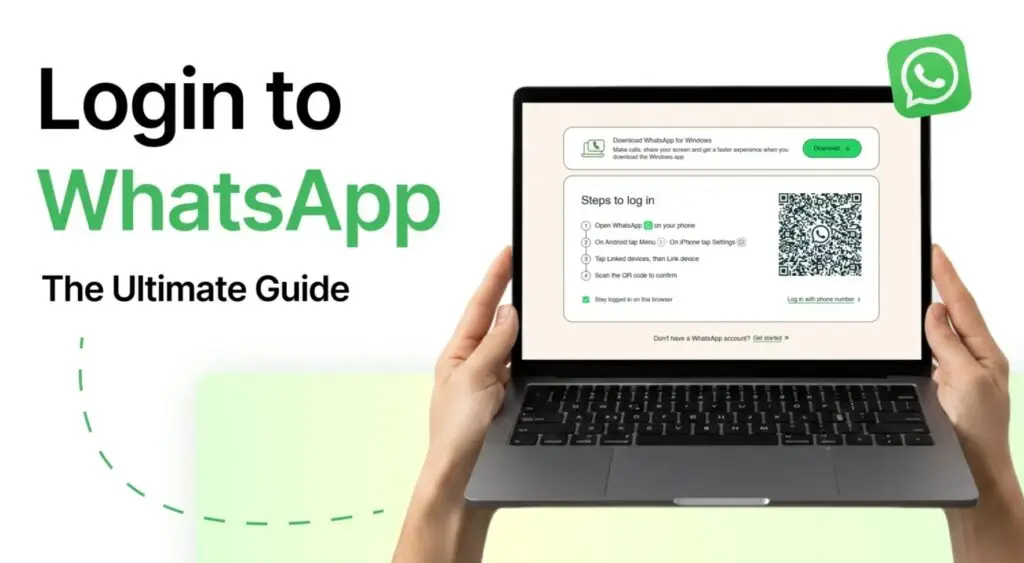
WhatsApp PC Login: If you use your desktop computer regularly and want to stay connected on your WhatsApp account on the same desktop, then this content is for you.
This page has explanations on several unique ways to log into WhatsApp web browser or PC.
WhatsApp PC Login – What You Must Do First
In order tot start using the WhatsApp web or WhatsApp for Desktop computer, you must have created a WhatsApp account on a mobile phone, using your phone number to do so. Then from your mobile you can always connect to any web browser or directly on the WhatsApp for PC.
ALSO READ: Yahoo Mail Registration | Create a Free Email Account
See full guide to create a new WhatApp here.
WhatsApp is of two types; the regular WhatsApp and the WhatsApp for Business. It’s still the same process of logging into WhatsApp web browser or PC.
Then need to download the WhatsApp for PC application if that is your preferred option to login on your WhatsApp for PC.
Downloading WhatsApp for Desktop Here
You will need to download and install the application on your Windows PC:
- Go to whatsapp.com to downloaded from the official WhatsApp website.
- After you have downloaded the .exe file, install it on your computer.
- After the application is installed on your computer, you will just need to launch it and to login on your WhatsApp account.
Step-by-step to log into WhatsApp Desktop App
Since you have downloaded and installed the WhatsApp Desktop App, its time to login using the steps below:
- Launch the app and click on “Login”

- Then you’ll need to open your WhatsApp on mobile, then click on the Menu (the three dots for Android, Setting gear icon for iPhone users).
- Then tap on the “Linked Devices , and click on “Link device”.

- Then place your phone on Your PC screens (directly on the QR code box) to scan the QR code to confirm connect and transfer data to the desktop WhatsApp.

That’s all! for logging into your WhatsApp account on the WhatsApp desktop app
WhatsApp PC Login – Step-by-step to log into WhatsApp web browser
- Go to web.whatsapp.com to login into your Whatsapp web account.

- Again, you’ll need to open your WhatsApp on mobile, click on the Menu (the three dots for Android, Setting gear icon for iPhone users).
- Then tap on the “Linked Devices , and click on “Link device”.
- You also need to place your phone on Your PC screens (directly on the QR code box) to scan the QR code to confirm connect and transfer data to the desktop WhatsApp.
You should be looking at your WhatsApp account on web platform now.
That’s all! But…
Alternatively, You may prefer to log into WhatsApp PC app with your phone number, whether you are using the WhatsApp desktop app or through the Web.Whatsapp.com platform.
Once you click on the link, “Log in with phone number” below the QR Code to, you will be prompted to enter your phone number. After that, WhatsApp will send a verification code to your WhatsApp message to input, and you will be logged in once completed.
READ ALSO: TikTok Business Account Verification: Ads Manager Guide
Whats the difference between the WhatsApp desktop app and the WhatsApp web?
| Feature / Aspect | WhatsApp Desktop App | WhatsApp Web |
|---|---|---|
| Installation | Requires installation of the desktop application on Windows or macOS. | No installation; works in any modern web browser. |
| Platform Requirements | Windows 8+ or macOS 10.10+; app must be downloaded/installed. | Works on any device with a supported browser (Chrome, Firefox, Edge, Safari, etc.). |
| Independence from Phone Connection | Can work even if phone loses internet after initial setup (multi-device support). | Requires phone to stay online and connected to internet. |
| Performance & Resource Usage | Tends to be more optimized, smoother, fewer lag issues compared with browser version. | Browser-based; performance can depend on browser load, tabs, and extensions. |
| Keyboard Shortcuts | Supports extensive keyboard shortcuts for productivity (e.g., switching chats, marking read). | Limited or no support for many keyboard shortcuts. |
| Notifications | Native desktop notifications generally more reliable and persistent. | Browser notifications can be less consistent if browser is closed or limited by settings. |
| Calling (Voice/Video) | Supports voice & video calls directly from the app. | Calling functionality historically not supported in browser (may change with future updates). |
| Data Syncing / Storage | Messages are synced and may be stored locally for faster access. | Syncs live with your phone; no local storage beyond browser cache. |
| Security Context | Runs as standalone app with OS-level protections; less exposed to browser malware/extensions. | Runs within a browser; potentially more exposed to browser-based exploits. |
| Accessibility on Any Computer | Limited to computers where the app can be installed. | Instantly accessible on virtually any computer via web browser. |
| Ease of Access / Convenience | Slightly less convenient because of installation requirement. | Extremely easy access — open browser, scan QR code, use. |
| Memory / CPU Usage | Generally lighter on system resources than web version. | May use more memory depending on browser and tab load. |
| File Sending / Drag & Drop | Supports file sharing from desktop; user experience tends to be smoother. | Also supports drag & drop, though experience varies by browser. |
Use the comment section below to further questions in case you find any section of this information confusing.